Further and Rarer
Controls & Interface
Controls
Game Interface
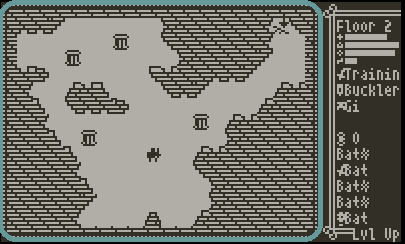
Main Play Area
This area of the screen shows you location and your surroundings. Here you can find the various things and people you can interact with in the town, and here you will see the dungeon you explore along with the monsters that threaten you from within it.
Current Location
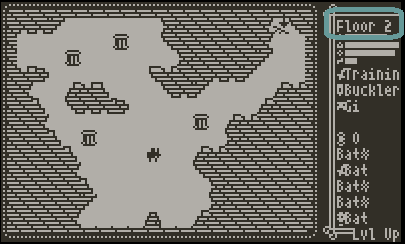
Here will tell you the name of your current location. In the dungeon, this will tell you how deep you are in the dungeon. Look forward to each tenth floor.
Status Bars
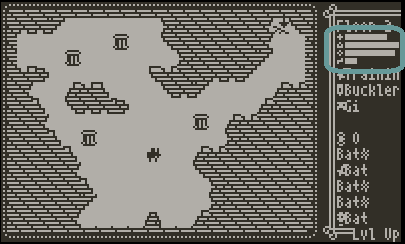
You find four status bars here. Each fills up from left to right. From top to bottom, they are: your HP, your mana, your focus, your experience. Your HP is your lifeforce; your enemies will try to reduce it, and if they ever bring it down to zero, you'll have to start a new run. Your mana is a resource for casting spells. Each spell has a mana cost that takes away your mana when you use it, and you cannot cast spells if you do not have the required mana. Your focus increases each time you attack; if you attack while it is full, you lose all your focus and that last attack has its damage increased proportional to your focus cap. Your experience grows as you defeat monsters in the dungeon; if the bar is ever filled, you will gain a level up which allows you to pick an upgrade; each time you level up, your experience is reset and the next level up will require more experience.
Top Display
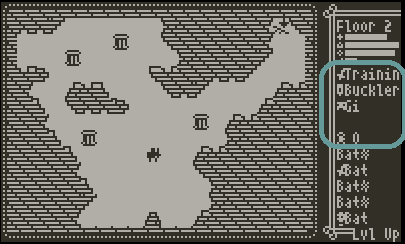
By default, this area shows you what items you have equipped and how much Coin you have. In the game settings, you can change it to show you how many potions you have instead or change it to show you the names of each nearby enemy.
Crank Menu
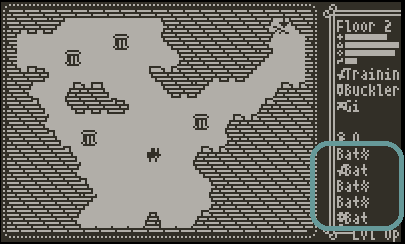
By default, this area shows you five most recent combat events. You can use the crank to scroll back through the combat log. The combat log only keeps a total of twenty combat events though. In the game settings, you can change this area, and the functionality of the crank to help your spell casting be a smoother process. See the section on in game menus to learn more about that.
The Bottom Row
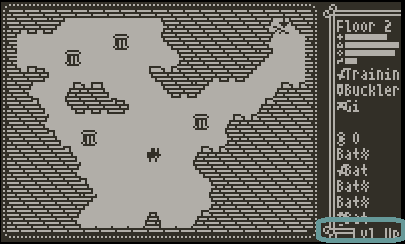
Normally, this bottom line is empty. If you have earned a level up, but you haven't gone into your menu to choose its upgrade yet, this bottom line will look like this to remind you. There is also an option in the game settings to have this area show you your current Coin when it doesn't tell you about the pending level up.
Dialog Boxes
On many occasions, the game will have things to tell you. This will include things that the NPCs in the game have to say. The rest of the game will pause while these are displayed on the screen. In most cases, you can use any button or the crank to hurry the text along.
In Game Menus
When the game offers you choices, a menu will appear. Use the dpad or the crank to choose and option and press A. Most menus also allow you to press B to close a menu without choosing anything. You can also press the B button while there is no menu open to access the game's main menu which has important tools and information. See the section on in game menus to learn more about what menus you will see and what they are used for.
Paged Menus
A few menus will only show four options at a time and show two arrows below the options. This means there are more options you can access by pressing left and right on the dpad.